ASL's Reoptimize tools let you update DFS lineups after a slate has started while keeping players whose games have already begun locked in place. You can replace players who are ruled out, reoptimize remaining open roster spots using updated projections, or schedule automatic reoptimization and receive an updated lineup CSV by email.
Reoptimization is especially useful on multi-game slates where player status and projections can change between the first game and the last.
Start With Your Existing Lineups
Reoptimization is handled through ASL's Multi-Lineup Editor. The original lineups may have been created by ASL or imported from another source.
From the main DFS Optimizer page, you have two ways to bring a lineup set into the editor:
-
Load Multi-Lineup Data reloads lineups previously generated and saved by ASL.
-
Load Multi-Lineup Data From CSV lets you bring in lineups created elsewhere, including lineups built with another optimizer or directly through DraftKings or FanDuel.
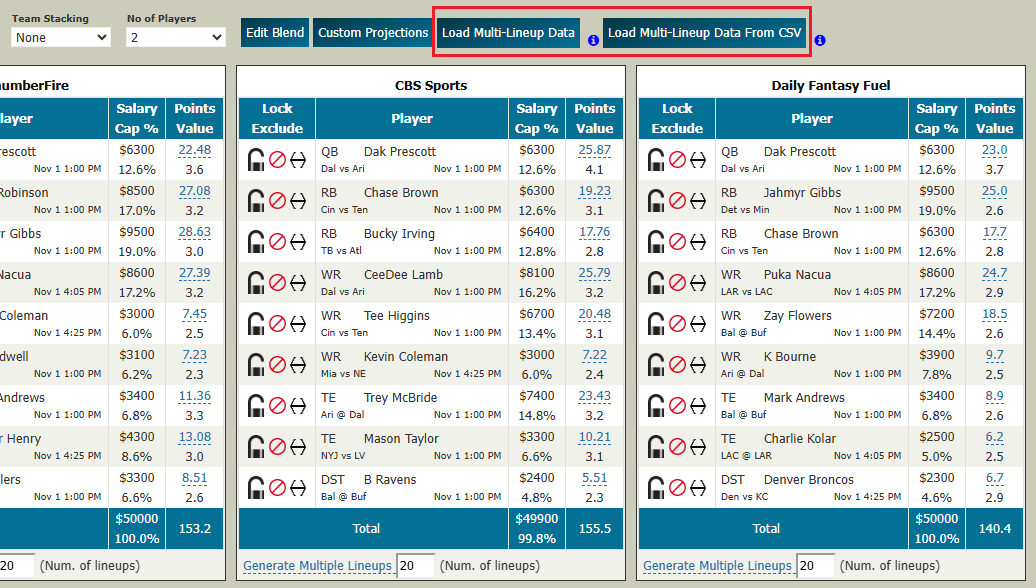
The amount of information available to the editor differs between the two methods.
When ASL reloads its own saved lineup data, it has much more information about how those lineups were constructed, including the projection provider associated with each lineup and other information retained by the optimizer.
When you load a CSV created elsewhere, ASL can only know what is contained in that file. For example, the CSV does not tell ASL that you intentionally locked a particular player when you originally built the lineup.
Either way, once the lineups are loaded, the Multi-Lineup Editor becomes your late-swap workspace.
The Multi-Lineup Editor Gives You Control
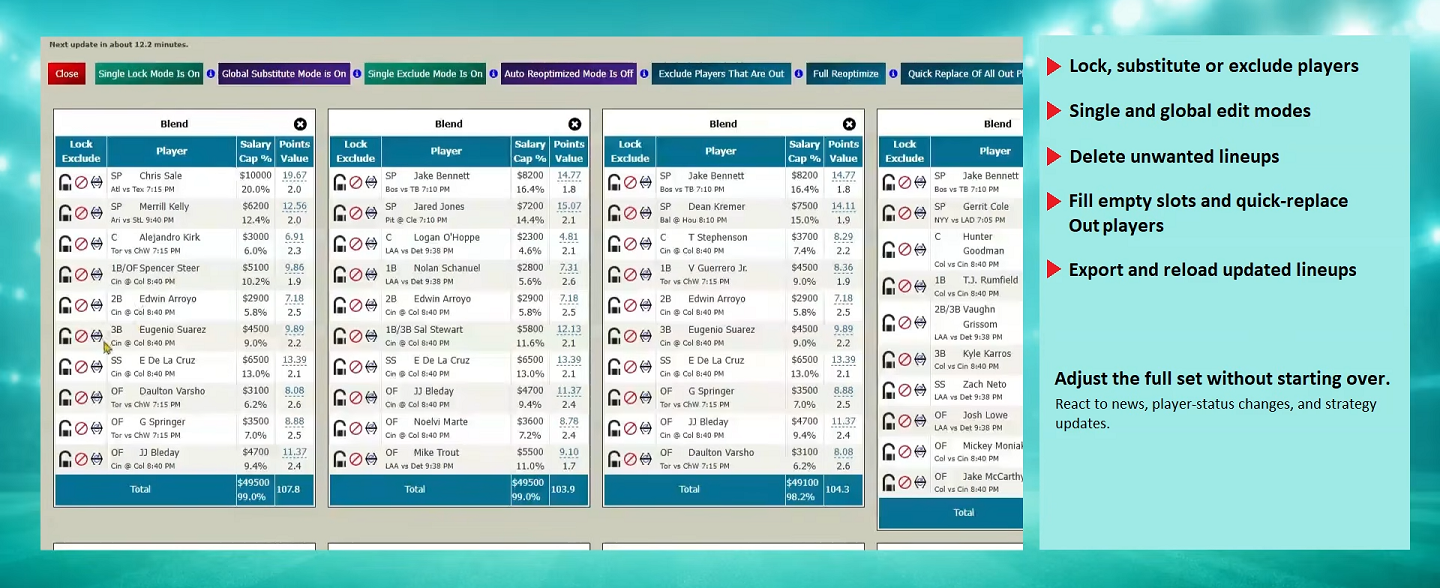
The editor lets you work with the lineup set without starting over.
You can lock, substitute or exclude players. Those changes can be made to an individual lineup or globally across the lineup set. You can delete unwanted lineups, remove players who are out, fill empty roster spots, and write the updated lineup set back to a CSV.
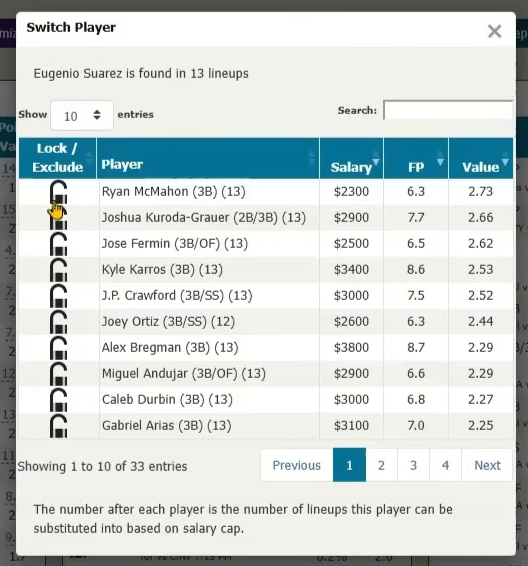
If you want to replace a specific player, the substitute tools show the available alternatives and the lineups in which the replacement can fit.
These tools are useful when a late-swap decision requires manual control rather than automatic reoptimization.
When a player is ruled out, the priority is usually to replace the zero-point roster spot with an eligible player who can still be swapped.
That is where the faster reoptimization tools become especially useful.
Quickly Replace Players Who Are Out
As the slate progresses, players whose games have already started are retained while the remaining open roster positions can still be adjusted.
ASL provides several related tools in the Multi-Lineup Editor:
-
Exclude Players That Are Out removes newly unavailable players from consideration.
-
Fill Empty Slots optimizes replacements for roster positions you have opened.
-
Quick Replace Of All Out Players combines the obvious repair process so you can quickly remove out players and replace them.
-
Full Reoptimize goes farther and rebuilds the still-changeable portions of each lineup using current projections.
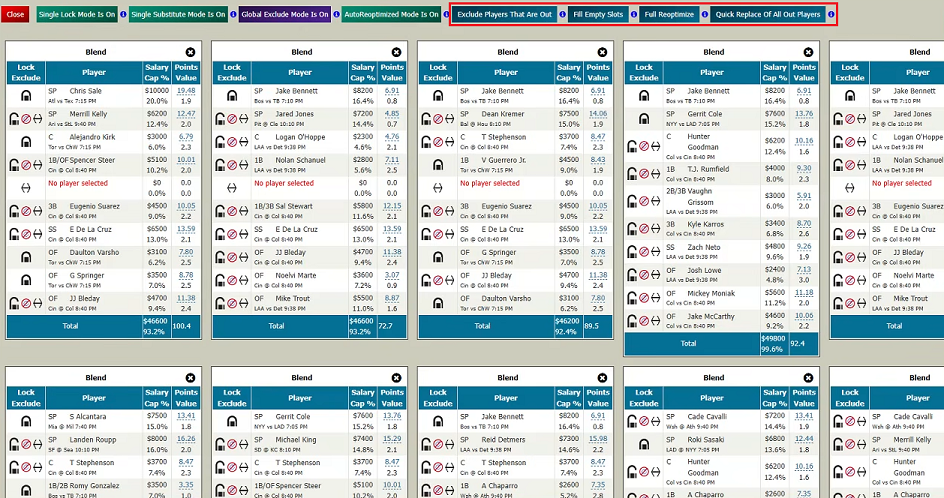
For an out player, making the replacement is usually the priority. Even if the substitute changes your original stack or creates a duplicate lineup, replacing a player projected for zero points is more important than perfectly preserving the original strategy.
Full Reoptimize requires a little more care.
When Should I Use Full Reoptimize?
Full Reoptimize works on each lineup individually. It does not rerun ASL's multi-lineup generator or reconstruct the lineup set as a portfolio.
When ASL originally generates multiple lineups, the optimizer can work on the entire lineup set together, using Pro Options to manage exposure, stacking, ownership and diversity. Full Reoptimize does not repeat that portfolio-level process.
Full Reoptimize does not repeat that process.
Instead, each lineup is reoptimized individually. Started players remain in place, and the optimizer attempts to improve the roster spots that are still available to change using the current projections.
Full Reoptimize is therefore best suited to a small number of lineups—for example, one lineup built from each projection provider.
But imagine that you created 100 lineups using exposure rules, different stacks and carefully controlled diversity. If many of those lineups have similar players locked into the early games, individually reoptimizing the remaining positions can cause them to converge on the same best projected replacements.
You could end up with duplicate or very similar lineups and lose much of the portfolio strategy you originally created.
For a large or strategically diversified lineup set, Out-only replacement is generally the safer automatic adjustment because it minimizes changes to the original portfolio.
Let ASL Reoptimize Automatically
Auto-Reoptimized Mode can schedule these updates automatically before upcoming games.
From the Multi-Lineup Editor, turn on AutoReoptimized Mode to open the Auto-Reoptimizer Setup.
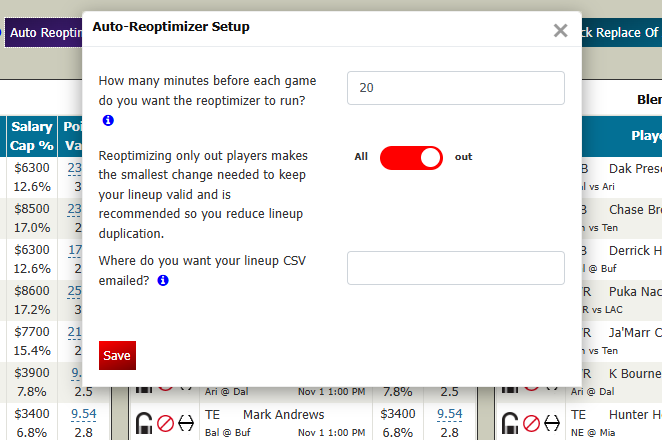
The setup has three basic choices.
When should ASL run?
Enter how many minutes before upcoming games you want the reoptimizer to run. A longer lead time gives you more time to receive, inspect and upload the new CSV. A shorter lead time can incorporate later information, but leaves you less time to act.
What should ASL replace?
Choose between All and out.
-
out focuses on players who have been ruled out and makes the smallest necessary changes.
-
All allows the still-changeable portions of each lineup to be fully reoptimized using the latest available projections.
For a larger lineup set, Out-only is usually the more conservative choice because it minimizes disruption to the strategy you originally built.
Where should ASL send the results?
Enter the email address where you want the updated lineup CSV delivered.
Once configured, ASL can revisit the saved lineup set as the slate progresses and email you an updated CSV.
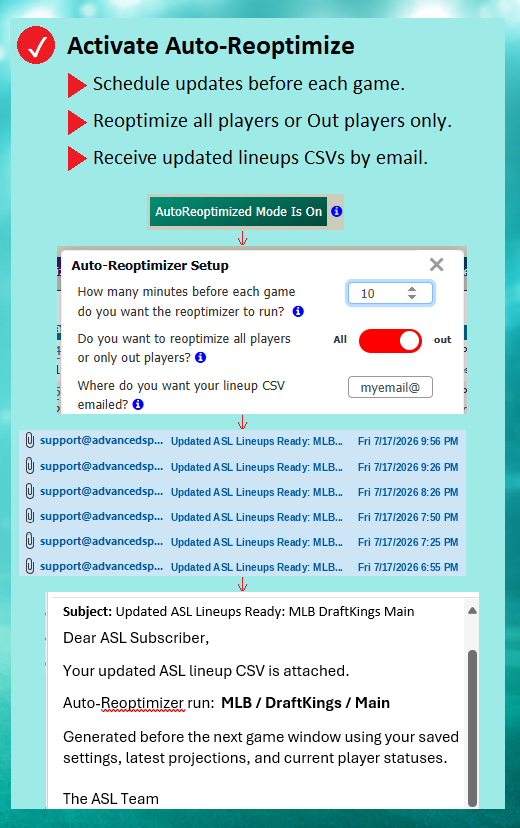
The file is sent to you—it is not automatically submitted to DraftKings, FanDuel or another DFS provider. You remain in control. Review the updated lineups, make any additional changes you want, and upload the CSV before the site's applicable late-swap deadline.
Make Sure ASL Has the Right Player IDs
To create an upload-ready CSV, ASL needs the player IDs used by the DFS provider for that particular slate.
ASL may already have those IDs. If not, the optimizer will ask you for the appropriate provider file—for example, the DraftKings salary file or the applicable FanDuel lineup CSV.
This is especially important when you load lineups from outside ASL. The lineup itself tells ASL which players are present, but the provider-specific IDs are what allow the resulting CSV to be uploaded correctly.
Save the Lineup Set You Actually Want Reoptimized
The automatic process works from your saved lineup data, so make sure the saved version represents the lineup set you actually want ASL to work with.
When lineups are originally generated, ASL saves the lineup set. If you later make changes in the Multi-Lineup Editor, Write Out Lineups creates the updated CSV and saves the current active lineup set.
That means you can generate your portfolio, refine it manually, save the version you actually intend to play, and then let Auto-Reoptimize work from that lineup set as the slate unfolds.
Use Automatic and Manual Reoptimization Together
Reoptimization is designed to handle routine late-swap adjustments quickly while leaving more complicated lineup decisions under your control.
Use Out-only reoptimization when you want to make the smallest necessary changes after players are ruled out. Use Full Reoptimize carefully with smaller lineup sets when you want ASL to reconsider all still-open roster spots using updated projections. For larger or strategically diversified portfolios, use the Multi-Lineup Editor when changes need to preserve exposure, stacking or other lineup-set considerations.
Auto-Reoptimized Mode can then automate the timing and email the resulting CSV for you to review and upload.